-
Log into the control panel
-
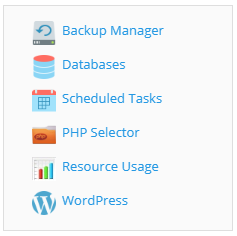
On the right-hand side of the screen you will see a link ‘Backup Manager’ Click that
- In the next screen you can see some buttons to manage your backups, if you already have backups they will also be shown here.

-
To create a backup, click the ‘Back Up’ button
-
Unless you have specific requirements leave the content as is.
-
We suggest that you leave the type as incremental as taking full backups will take up a lot of space. Incremental will still backup everything but successive backups will only backup files you have changed.
-
You can then configure the backup settings; we suggest you leave these settings unless you have specific requirements.
-
Click ‘Ok’
-
A backup will start after it has completed you will be able to download a backup to store off site, you can do this by clicking the down arrow on the far right.
-
You can also schedule backups by clicking the schedule button, we recommend you do this as it means you do not have to remember to run a backup every time you change your site.
-
Select ‘Use Incremental Backup’ we recommend you run the full backup weekly.
-
After you have configured everything select ‘Apply’
-